📶 Removing a Wi-Fi Network in Windows
Sometimes you need to remove a saved Wi-Fi network—especially if the password has changed or the connection is misbehaving. Here's how to do it:
🪟 Windows 10
-
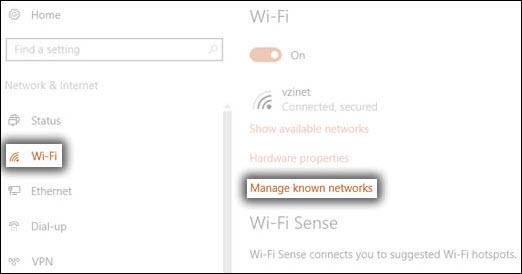
Click the Start menu, then go to
Settings > Network & Internet > Wi-Fi -
Click Manage known networks
-
Find the Wi-Fi network you want to remove and click it
-
Click Forget
✅ That network is now removed from your saved list and will no longer connect automatically.
🪟 Windows 11
-
Open the Settings app
(Right-click the Start button and choose Settings, or pressWindows + I) -
Navigate to:
Network & Internet > Wi-Fi > Manage known networks -
Find the network you'd like to remove
-
Click Forget
✅ The Wi-Fi profile is now deleted and won't auto-connect in the future.
Related Articles
🔄 Shut Down vs Restart: What's the Difference?
What’s the Difference Between Shut Down and Restart? Before Windows 8, there was no real difference between shutting down and restarting a Windows PC—aside from the fact that Restart would power the device back on automatically. However, with the ...🧙♂️ IT Support: How to Submit Support Requests
?️ How to Submit an IT Support Request There are three ways to request IT assistance. Whichever method you choose, please include as much detail as possible—this helps us resolve your issue faster and more efficiently. Tip: The more information you ...🖥️ How To Fix A Monitor That Isn’t Connecting
If your screen turns on but says things like “No signal”, “Scanning for signal”, or goes into standby mode, don’t worry! This is a very common issue and is usually quick to fix. Follow the steps below in order. You can stop as soon as the screen ...🤔 HIOPOS FAQ
Can a ResPax product be discounted manually through the Sale Summary on the POS, or is there a specific method required? No, promo codes are the only option to discount ResPax products. If you apply a discount through the Sale Summary on the POS, the ...🎣Don’t Get Hooked: Spotting Modern Phishing
Phishing emails and messages aren’t what they used to be. Gone are the days when you could spot them just by looking for broken English or weird formatting. Thanks to AI tools, cybercriminals can now create messages that are polished, personalized, ...