📤 How to Share OneDrive Files or Folders with Specific People
📤 How to Share OneDrive Files or Folders with Specific People

Use this method if you want to send a private sharing link to specific people or groups. It allows you to:
Track who you've shared with
Manage or revoke access later
🔐 Step-by-Step: Share with Specific People
Go to the OneDrive website
Sign in using your Microsoft account or work/school account.Select the file or folder
Click the circle next to the item you want to share. Tip: You can select multiple items only if you're using a personal OneDrive account. Work/school accounts don't support this.
Click the Share icon
 at the top of the page.
🔧 Adjust Sharing Settings
In the Send link box, click “Anyone with the link can edit” (or similar text) to open link settings.
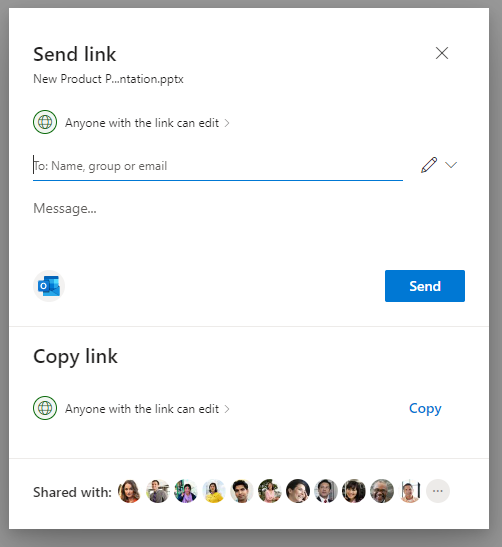
Under Who would you like this link to work for? choose:
Specific people – ✅ Best for secure sharing
(Other options like “Anyone,” “People in your organization,” or “People with existing access” may appear depending on admin settings.)
Set Permissions:
Allow editing – Let users modify files (default: ON)
Block download – Prevent downloads (only if editing is off)
Set expiration date – Automatically disable link after a date
Set password – Require a password for access
Open in review mode only – Word files only: allows comments/suggestions only
Click Apply once all settings are configured.
👥 Send the Link to Specific People
In the field labeled “Name, group or email”, type the people you want to share with.
✏️ Click the pencil icon beside their name to choose:
Can edit
Can view
Can review (Word docs only)
(Optional) Add a personal message in the box below the names.
Click Send to email the link directly.
Or click Outlook to open a new message in Outlook with the sharing link already inserted.
📝 Additional Notes
You can remove or manage access later by selecting the file/folder → Share → Manage Access.
Your organization may restrict some sharing options (e.g., disabling public links).
If Family Safety is enabled, you may only share with approved contacts.
Be mindful of copyright laws when sharing content.
Related Articles
📎Sharing Files in Microsoft Teams
You can easily share files in Microsoft Teams — whether they're stored in OneDrive, your local device, or already in a Teams channel. Files can be shared in chat messages or channel posts, and you can choose to either upload the file or send a link. ...📫 Accessing a Shared Mailbox in Outlook Web Access (OWA)
If you want to monitor both your primary mailbox and a shared mailbox at the same time, follow the steps below. Once added, the shared mailbox will appear in the left navigation pane every time you open Outlook Web Access. ? How to Add a Shared ...📄🔧PDFs Appear Corrupted When Shared Between Apps
What’s going on? Sometimes a PDF that looks totally fine in one app can appear corrupted, blank, or unreadable when someone opens it in Adobe Acrobat. Confusing? Very. Luckily, the file usually isn’t broken — it just needs a quick conversion. What ...🔐 Forgot Your Office 365 Password?
If you’ve forgotten your Office 365 password (used for services like Outlook, Teams, or SharePoint Online), follow the steps below to reset it: ? Resetting Your Password Go to the Office 365 login page. If you’ve entered the wrong password, you’ll ...🤔 HIOPOS FAQ
Can a ResPax product be discounted manually through the Sale Summary on the POS, or is there a specific method required? No, promo codes are the only option to discount ResPax products. If you apply a discount through the Sale Summary on the POS, the ...